
Every project has its own Tasks. You see every task in the project by status, including the ones made from comments.
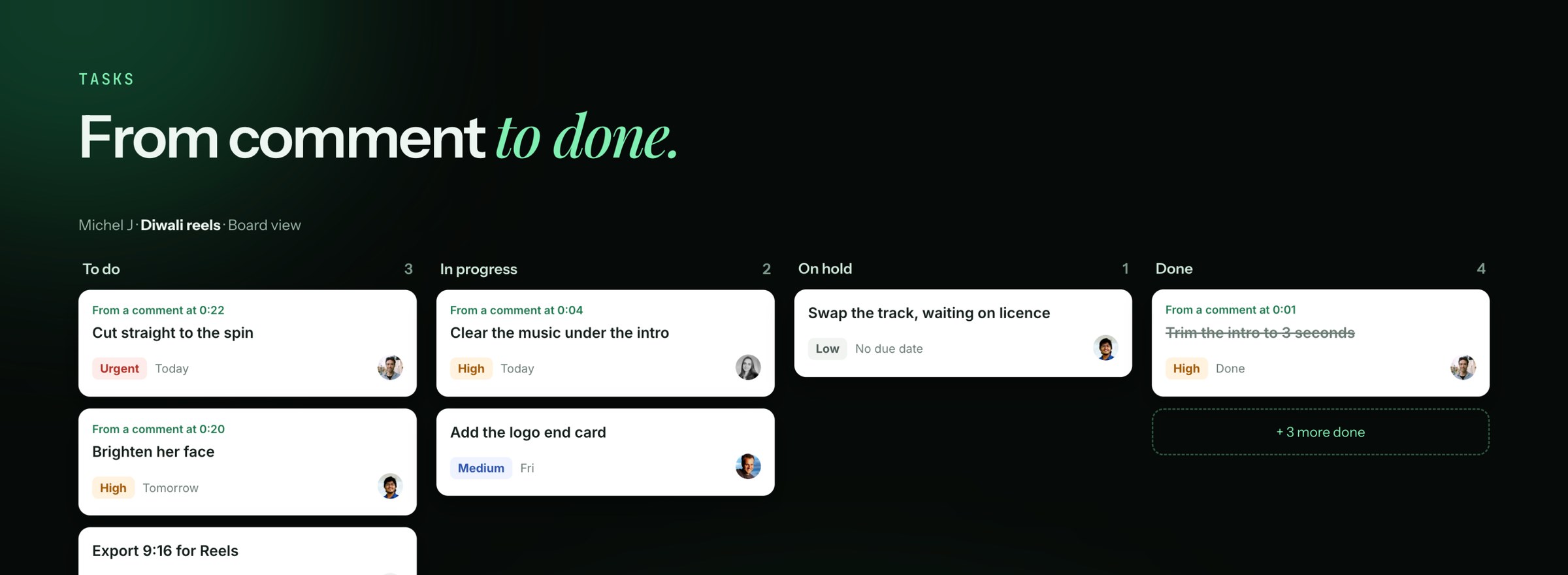
Task groups
Every task belongs to a group. A group is usually a campaign or a deliverable, like "Diwali reels" or "Brand film".
To make one, open Tasks and click Create a task group. Type a name and press Enter.
Deleting a group deletes every task in it, so be careful.
Make a task
- Click New task.
- Type a Title. Add a Description if it helps.
- Pick a Task group.
- Click Create task.
You can also make a task straight from a comment. See Turn comments into tasks.
Move tasks on the kanban board
Drag the card to the next column:
Backlog · To do · In progress · On hold · Done
Backlog starts folded, so the active work fits on screen. Prefer rows? Switch to List view.
Task details
Click a card to open it. You can set:
- Assignee: who does it
- Priority: Urgent, High, Medium or Low
- Due: pick Today, Tomorrow, In a week, or any date
- Tags: the same tags you use on files and posts
- Attach files for references
A task made from a comment shows the file it came from. Click Open asset to jump to that exact moment.
Talk about the task under Comments. See every change under Activity.
Find tasks
Use Search tasks, or Filters for status, priority, tag or due date. Click Copy link to this task to share it with a teammate.