
Why versions
When your client asks for changes, the new cut is not a new file. It is v2 of the same file. Every comment, task and approval stays with the version it was made on. Nobody asks "which one is final?" again.
Upload a new version
- Open the file.
- Click Upload new version, or drop the new cut onto the player.
The new version becomes the current one. If you turned on reminders, the reminder email tells your client what changed since the last version.
See all versions
Click Versions. Pick any version to play it and read its comments. Want an older one to be the main one again? Click Make current.
Compare two versions
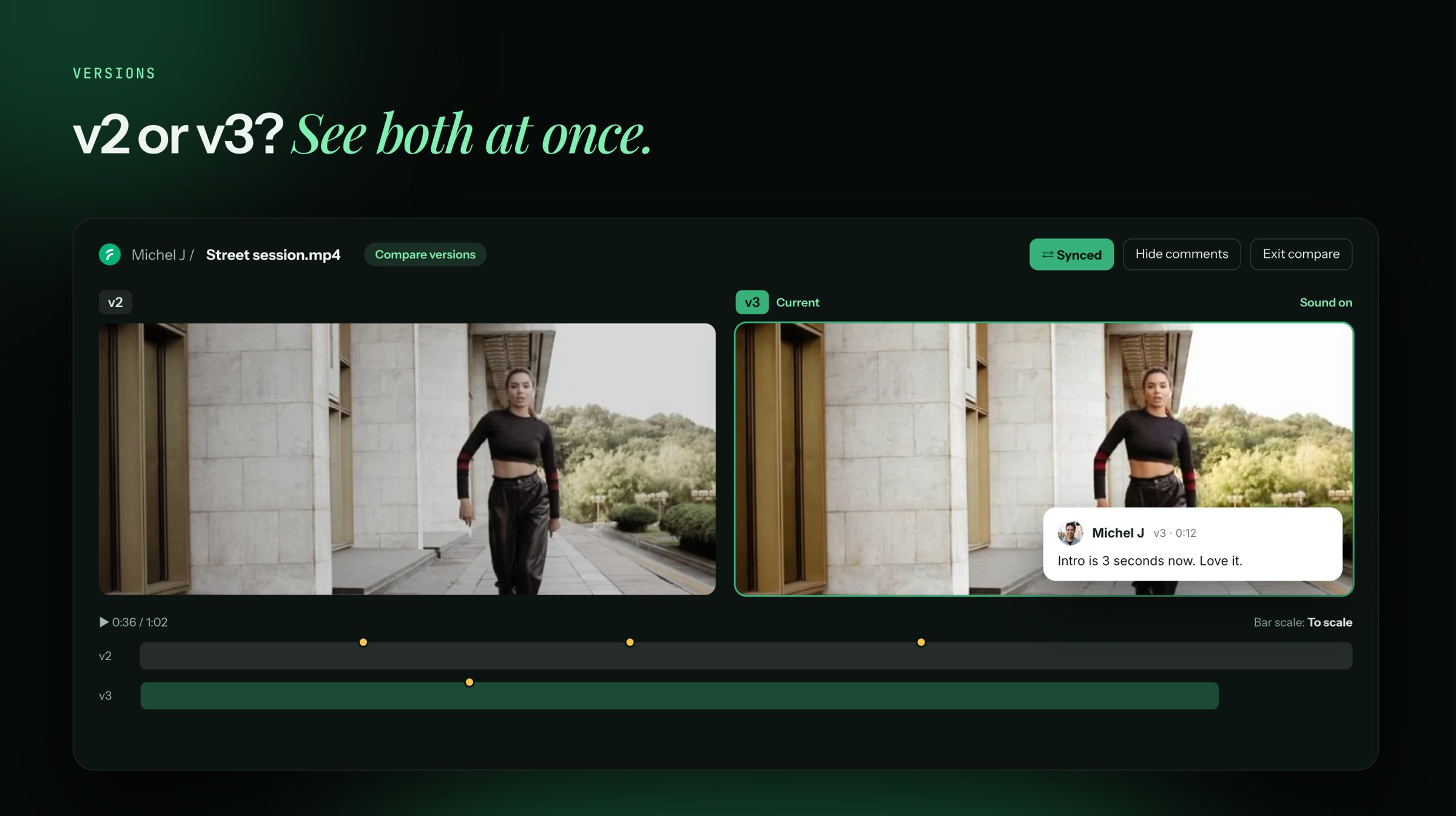
- Open the file and click Compare versions.
- Pick the version to compare with.
- Press play.
Both versions play side by side.
- Synced: play, pause and seek move both. Click it to move them one at a time.
- Sound: only the version you click on plays sound.
- Comments follow the version you click on. Hide them to give the videos more room.
- Bar scale: "To scale" shows each version's real length. Handy when v3 is shorter than v2.
Click Exit compare when you're done.