
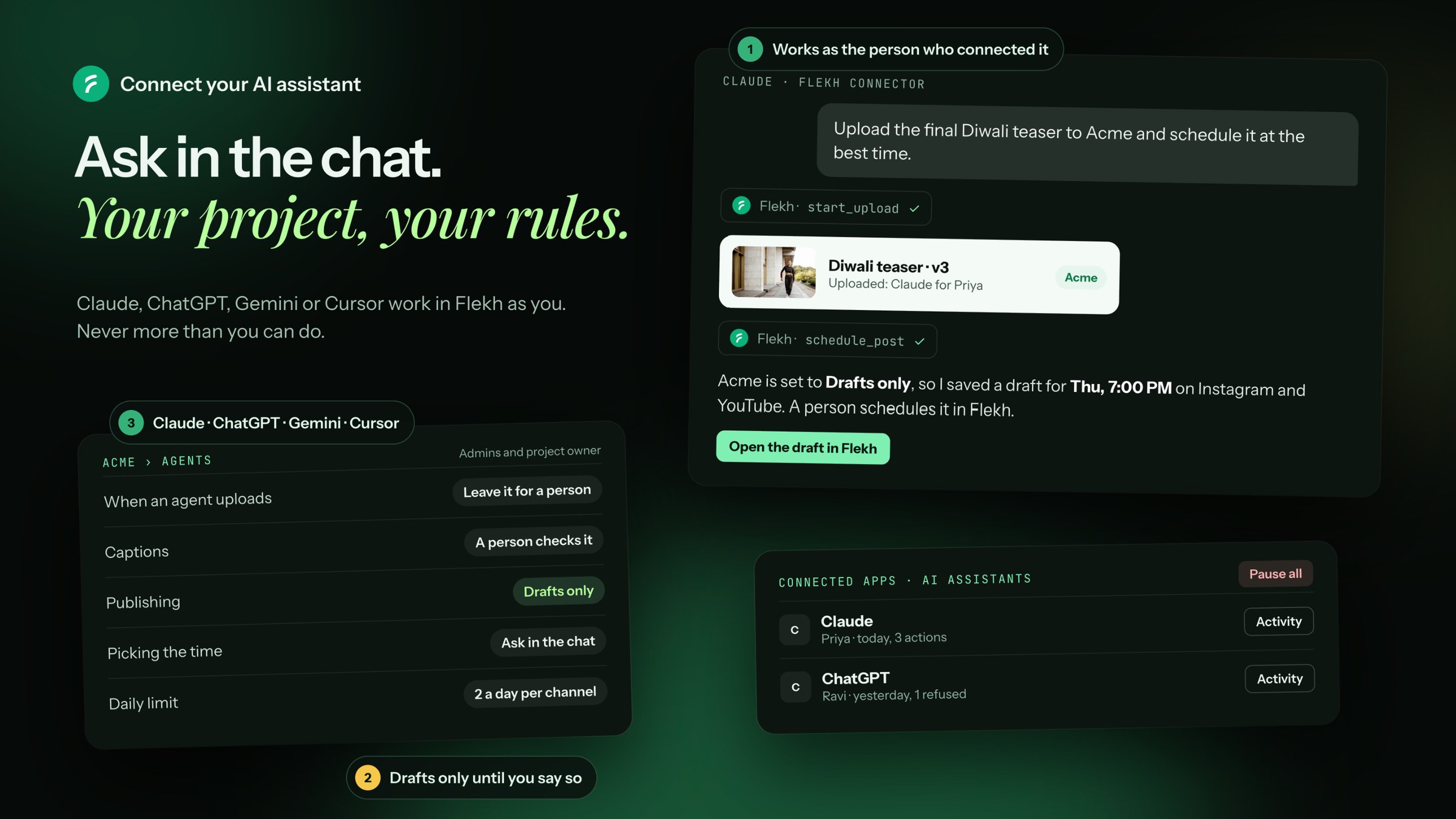
Flekh runs its own MCP server, a standard way for AI assistants to use other apps. Add Flekh once and your assistant can work in your projects as you: upload a new cut, read the client's comments, make tasks, schedule a post, show results. What it may do on its own is set per project. See What your AI assistant can and can't do.
Nothing to download. Your Flekh address is:
https://api.flekh.com/mcp
You also find it in Account settings › Connected apps › AI assistants, with a Copy button.
Before you start
- You need a Flekh account on a team, not a collaborator invite.
- Your admin decides Who can connect: Admins only (the default) or Everyone. If you're not allowed, the sign-in page says so and lets you ask your admin with one click.
Claude
- If Flekh is in Claude's connector directory, open Settings › Connectors, find Flekh and click Connect. If not, click Add custom connector and paste the address.
- Sign in to Flekh in the window that opens, pick your account and click Allow.
Claude Code, Cursor and Codex: one command
In a terminal, run:
npx @flekh/review setup
It adds Flekh to every coding agent it finds on your computer (Claude Code in all projects, Cursor, Codex) and opens Flekh's sign-in. Safe to run again: it won't add Flekh twice.
Claude Code plugin
Prefer plugins? In Claude Code, run:
/plugin marketplace add netbrisk/flekh-mcp-plugin
/plugin install flekh@flekh
Then type /mcp, choose flekh and sign in. The plugin also teaches Claude Code when to use Flekh: upload a render for review, read the comments, and upload the next version with notes on what changed.
Claude Code can upload files straight from your computer: "Upload ~/Renders/teaser-v3.mp4 to Acme as the new version." Big files upload in parts and pick up where they left off.
ChatGPT
- If Flekh is in ChatGPT's apps, open Settings › Apps, find Flekh and connect. If not, turn on Settings › Apps › Advanced › Developer mode, click Create app and paste the address.
- Sign in to Flekh and click Allow.
Gemini
Where your Gemini plan lets you add apps, add Flekh (or the address above) and sign in. In Gemini, upload files by link, for example a Google Drive or Dropbox share link, not from your computer.
Cursor, Codex and other MCP apps
Add a new MCP server with the address above (type: HTTP or Streamable HTTP). The app opens Flekh's sign-in when it first connects. Cursor and Codex are also covered by npx @flekh/review setup above.
Try asking
- "What needs me today?"
- "Upload the final Diwali teaser to Acme as the new version."
- "Summarize the client's comments on Summer Reel v3 and make tasks from them."
- "Schedule the approved cut on Instagram and YouTube at the best time."
- "How did last week's posts do for Acme?"
In Claude and ChatGPT, many answers come as small Flekh cards you can click: upload, time picker, results, tasks.
Pause or disconnect
Open Account settings › Connected apps. Each AI connection shows who added it and when. Click Activity to see what it did.
- Pause (in Activity) stops one connection until you click Resume. Admins can Pause all.
- Disconnect removes it. It loses access on its next request.