
The best way to start a post is from the approved file. Then the post knows exactly which version went out.
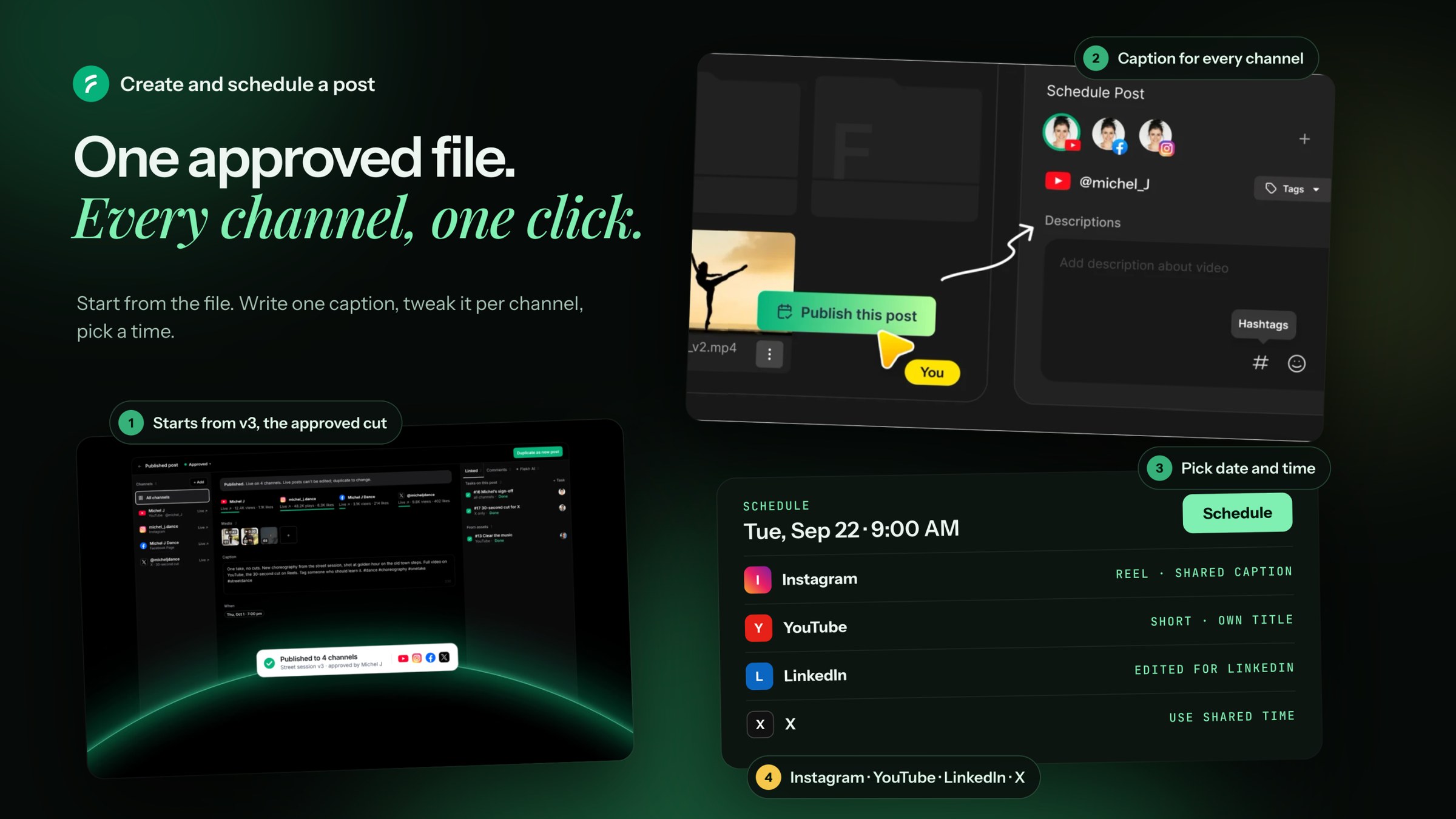
Start a post
- From a file: open it and click Create a post with this file.
- From the calendar: open Publish › Posts, pick a day and click Schedule here.
- Or click New post anywhere in Posts.
Write the caption
- Pick the channels.
- Write in Caption for every channel. Every channel uses it unless it has its own.
- Want a different caption for one channel? Edit it there. It shows Edited for Instagram. Click Reset to shared to go back.
- Stuck? Click ✦ draft with Flekh AI and edit what it writes.
- Click Add hashtags to use a set from your Hashtags Manager.
Check the preview for each platform before you go on.
Pick the format
Each platform has its own options. For example Reel, Story or Post on Instagram, or a title on YouTube. Mark Paid partnership if the post is paid.
Schedule the post on every channel
One post can go to Instagram, Facebook, YouTube, LinkedIn and X at the same time.
Click Schedule, then Pick date and time. Or click Publish now.
All channels use the same time. To post one channel at a different time, change it on that channel. Use shared time puts it back.
If one channel has a problem, Flekh asks something like Schedule 3 of 4 channels? The others stay as drafts and go out once you fix them. See Why a post is blocked.
Ask the client first (optional)
Want the client to see the post before it goes live? Click Send for approval and add their email. They review it before it goes out.
In a hurry? Pick Skip approval and schedule now.
After it goes out
You see every post on the calendar in Posts, by Month or Week.
If a post fails, open it and pick Retry now, Retry at a new time or Reconnect & retry.
A published post can't be edited or deleted from Flekh. Need it again? Click Duplicate as new post.