
Before a post can be scheduled, Flekh checks it on every channel. This is how you never post the wrong version.
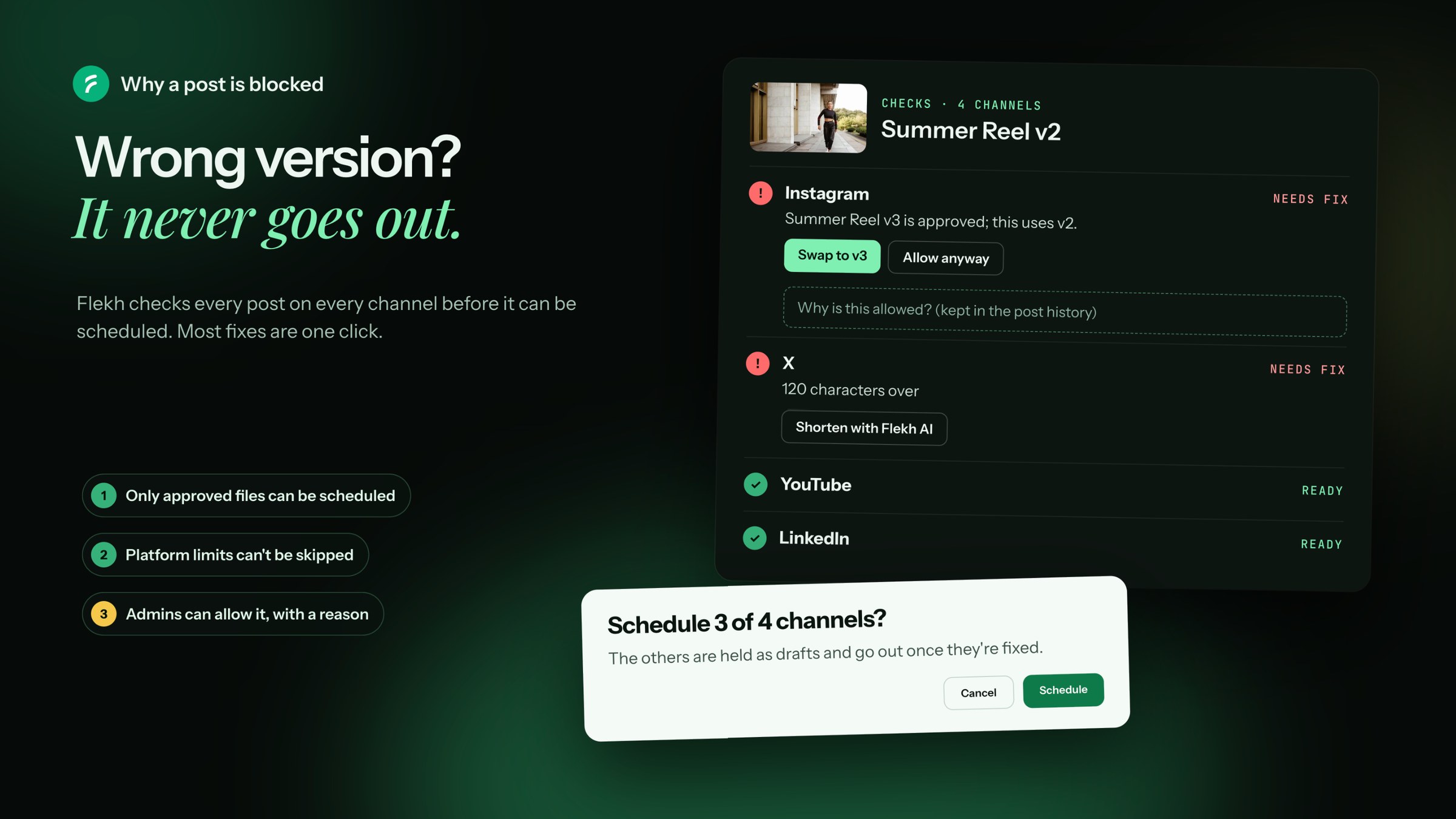
You see all the checks in Publish › Publishing rules.
The file is not approved
- Summer Reel v2 isn't approved yet. Only approved files can be scheduled. Get it approved first. See Send an approval link.
- Summer Reel v3 is approved; this uses v2. A newer version was approved after you made the post. Click Swap to v3.
The platform says no
These are the platform's own limits. Nobody can change them.
For example, an Instagram post takes a caption of up to 2,200 characters, up to 10 files, and video up to 15 minutes. You see each platform’s limits in Publish › Publishing rules.
- Caption too long: for example "120 characters over". Shorten it, or let Flekh AI write a shorter one.
- Media missing: some posts need a file. Click Add media.
- Too many files: click Use first 10, or remove some.
- Video too long: for example an Instagram post takes video up to 15 minutes.
The account needs you
If the sign-in expired, click Reconnect.
Allow anyway
Sometimes the client said yes on a call, not in Flekh. An admin can click Allow anyway on an approval check and type why. The reason is kept in the post history, so everyone can see who allowed it and why.
Platform limits can't be allowed anyway.
Warnings, not blocks
Your team's word checks from Client notes only warn. For example "Caption has 'cheap', which your team avoids" or "Caption must include '#ad'".
Grey hints come from your own results, like "Reels under 20 s kept more viewers". They never block. Click Make it a rule if you want to keep it.