
An approval link lets anyone review and approve your files. They don't need a Flekh account.
Send one
- In Files, click Share, then Ask approval.
- Tick the files to send. Click Select all if you want everything in view.
- Under Invite reviewers by email, type one or more emails. Or click Copy to share the link yourself, for example on WhatsApp.
- Add a Message to reviewers. Or click Draft with Flekh AI, then edit it.
- Click Send for approval.
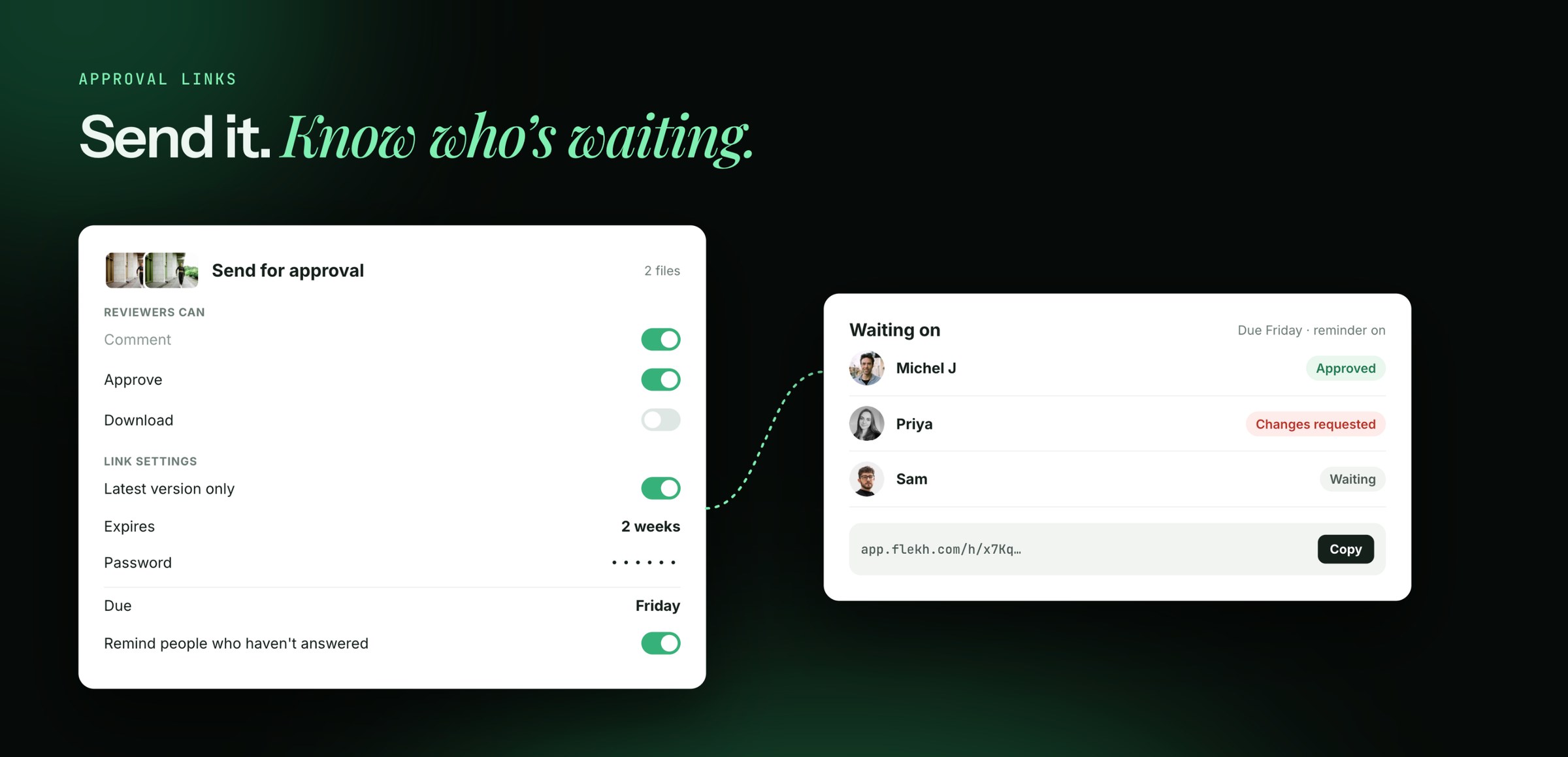
Choose what reviewers can do
Under Reviewers can:
- Comment: always on
- Approve: turn off if you only want feedback
- Download: turn on if they need the file
Link settings
Open Link settings:
- Latest version only: reviewers always see the newest version
- Expires: 1 week, 2 weeks, 3 weeks or never
- Password: reviewers must type it to open the link
Expiring links and passwords are on Pro.
Due date and reminders
Set a Due date so reviewers know when you need an answer. Turn on Remind people who haven't answered, and Flekh sends a reminder for you. The reminder also lists what changed since the last version.
See who you are waiting on
The link shows Waiting on with each reviewer: Waiting, Approved or Changes requested.
Find, change or turn off a link
Open Approvals in the left menu. You see every approval link in the project. Open one to change it. The link stays the same.
To turn a link off, click Delete. It stops working for everyone who has it. This can't be undone.