
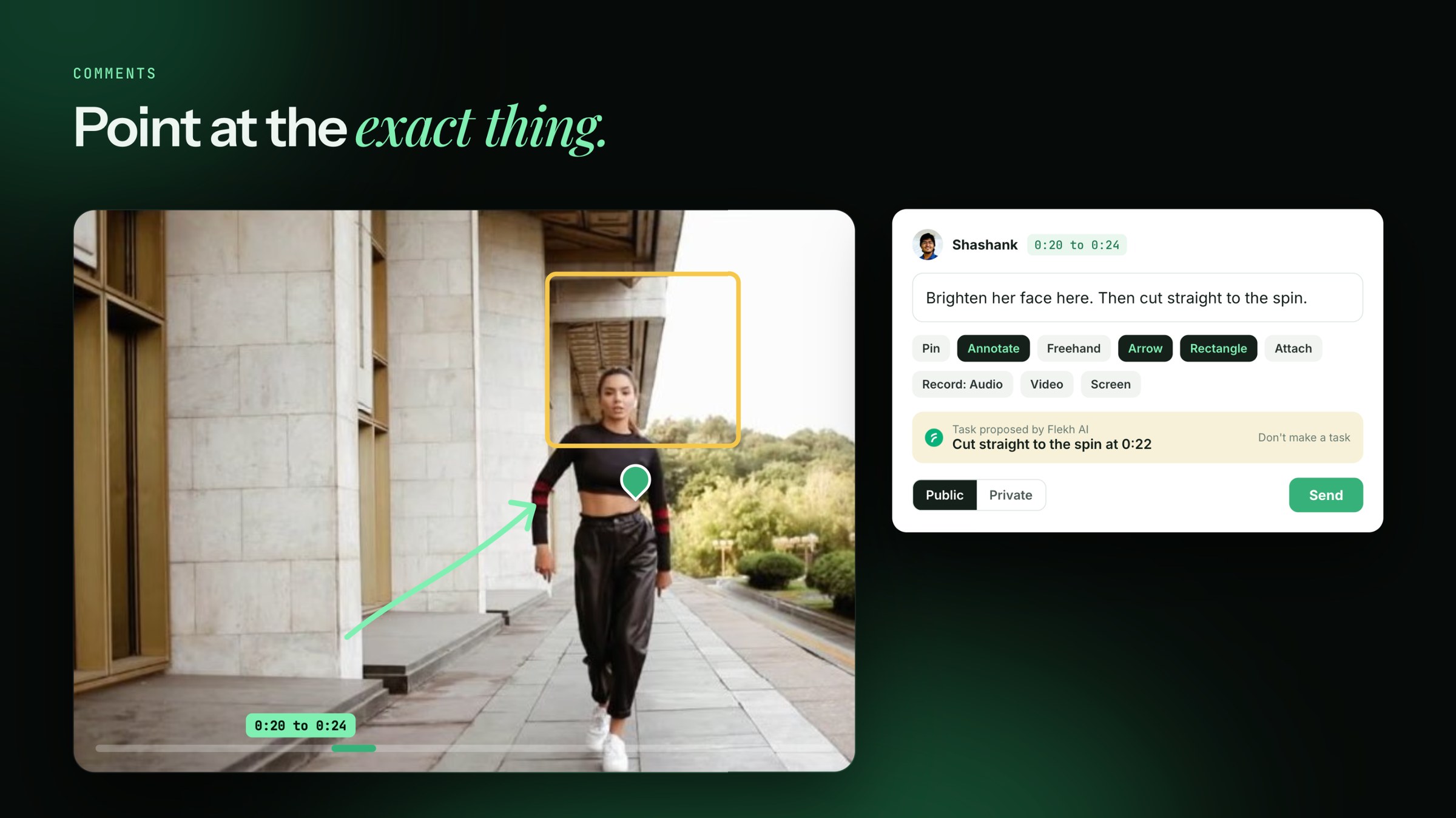
Good feedback points at the exact thing. In Flekh, every comment is stuck to a moment and, if you like, a spot on the frame.
Leave a comment
- Pause at the moment you mean. Or click the seek bar to pick a moment, or drag on it to pick a range, like 0:20 to 0:24.
- Type in Leave your comment here…
- Press Enter or click Send.
Want to point at one spot? Click Pin and click on the frame. A pin shows exactly where you mean.
Draw on the frame
- Click Annotate.
- Pick a tool: Freehand, Line, Arrow or Rectangle. Pick a colour.
- Draw, then send your comment. The drawing stays with it.
Use Undo, Redo or Clear if you go wrong.
Attach a file
Click Attach a file to add a reference, like a logo, a font or a screenshot.
Record instead of typing
Click Record and pick:
- Audio: your voice
- Video: your camera and microphone
- Screen: a tab, window or screen, with your voice
When you stop, Flekh AI writes down what you said and tidies it into clean text. Don't like the tidy version? Click Undo to keep your own words. The recording is always saved.
A task, ready if you want it
When your comment asks for a change, Flekh AI may suggest a task under it. Keep it, edit the title, or click Don't make a task. Nothing is created until you send.
Who can see your comment
Before you send, pick who sees it:
- Public: everyone with access, clients and guests too
- Private: only your team
Private comments are on Pro. See Replies, likes, resolve and private comments.