
Share this page with your client if they are new to Flekh.
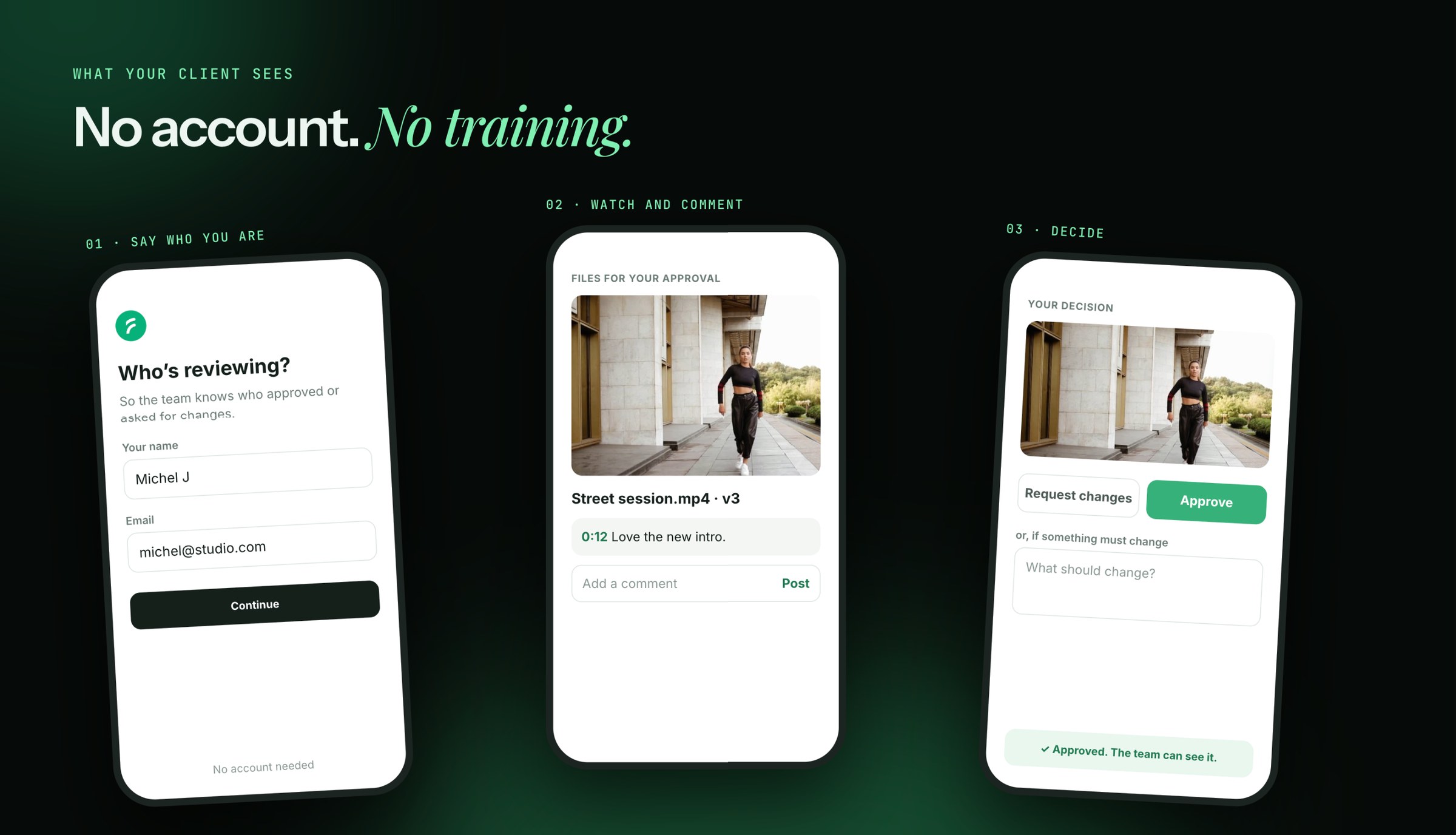
For your client: how to review
- Open the link from the email or message. It works on a laptop or a phone.
- Type the password if you were given one.
- Tell us who you are. Type your name and email, so the team knows who approved or asked for changes. You don't need an account.
- Watch the files under Files for your approval.
- Comment. Pause where you want, type in Add a comment, and click Post.
- Decide. Click Approve if it can go out as it is. Or click Request changes and write what should change.
That's it. The team sees your decision right away.
If the link doesn't open
- "This link has expired" or "This link was removed": ask the person who shared it for a new link.
- "Link not found": check the address, or ask them to send it again.
- Someone else's name shows? Click Not you? and type yours.